
Home
Your dashboard when you sign in — a snapshot of what you've spent and what's waiting on you.
How to read your dashboard
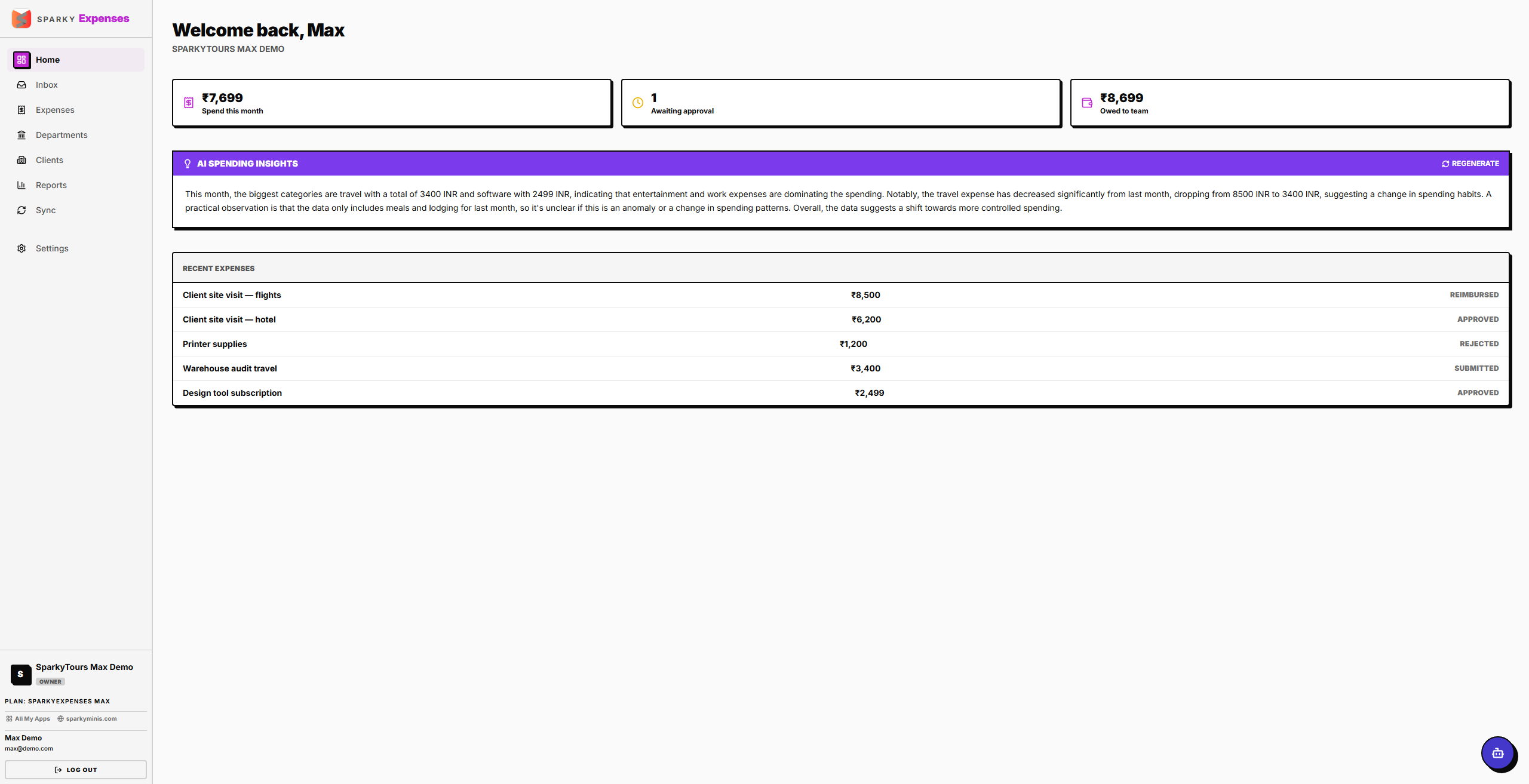
When you open SparkyExpenses, you land on Home. It shows your total spend this month (converted into your organization's base currency if some expenses use a different one), how many expenses are waiting for approval (if your plan includes approval workflows), the reimbursable total, and your five most recently logged expenses. If you can't approve expenses yourself, everything here is scoped to just your own expenses rather than the whole organization's.
How to get an AI spending summary
If your plan includes AI Insights, Home also shows an "AI Spending Insights" panel — click "Generate summary" for a plain-language readout comparing this month's spending by category against last month's. Once generated, "Regenerate" refreshes it. This is available on Plus and Max plans.
How to finish setting up your organization
If your account doesn't have an organization set up yet, Home shows a short setup prompt instead of your stats. Enter your organization's name and submit — this activates your organization and takes you to the normal dashboard.