
Clients
The clients you can bill expenses back to.
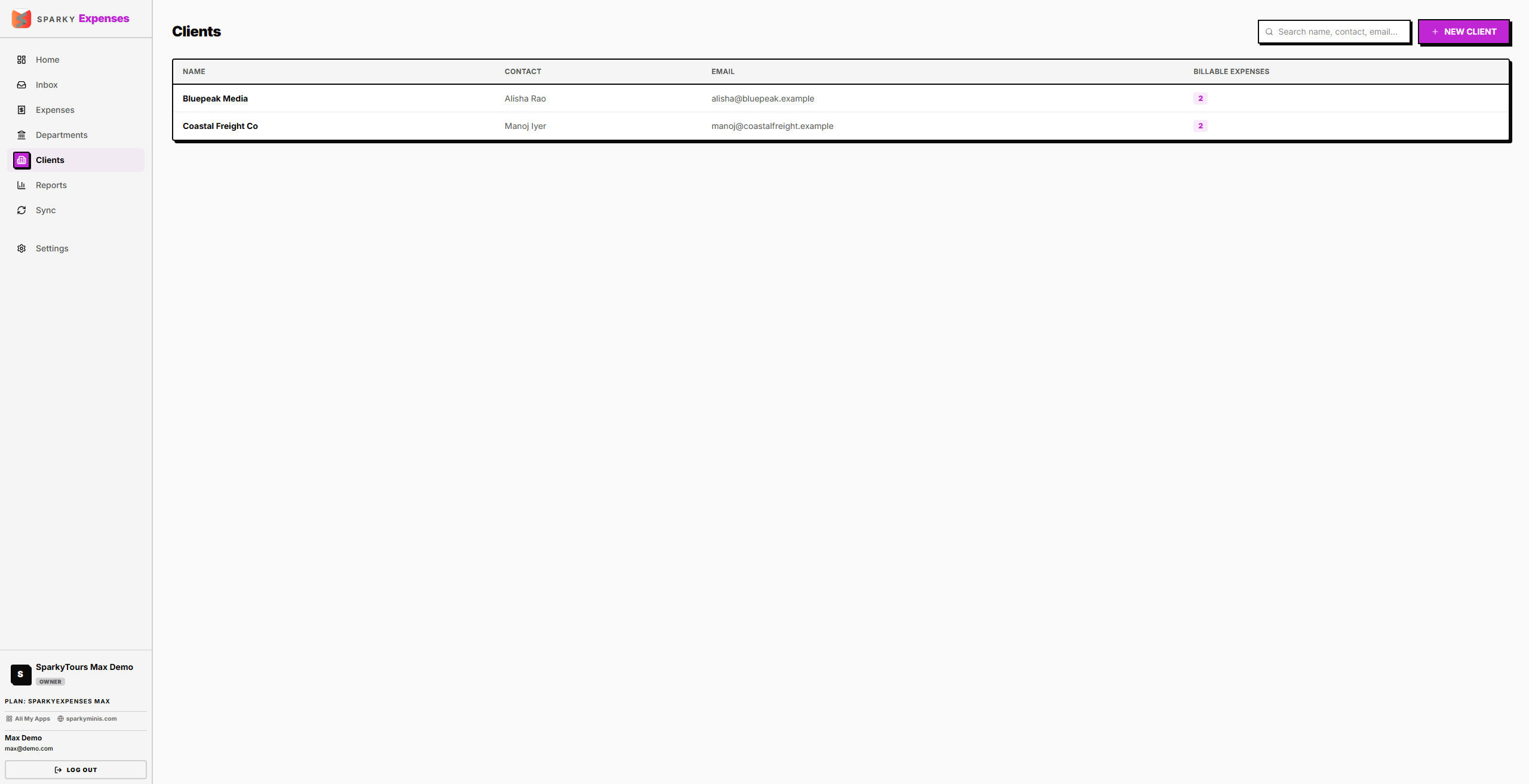
How to find a client
Open Clients from the sidebar. Use the search box to filter by name, contact name, or email — results show the 200 most recently updated matches.
How to add a client
Click "New Client." Only Client name is required — contact person, email, and phone are optional. Saving takes you straight to the new client's detail page.
How to view or edit a client
Click a client from the list to open their detail page. If you have edit permission, update their name, contact person, email, phone, and notes. Name is the only required field. The page also lists every expense logged against that client.
How to delete a client
From a client's detail page, choose Delete, then confirm — deleting can't be undone. If the client still has expenses attached, deletion is blocked. Otherwise this removes the client and takes you back to the Clients list.