
Expenses
Log what you spend, attach a receipt, and — if your organization uses approvals — send it through review to reimbursement.
How to view expenses
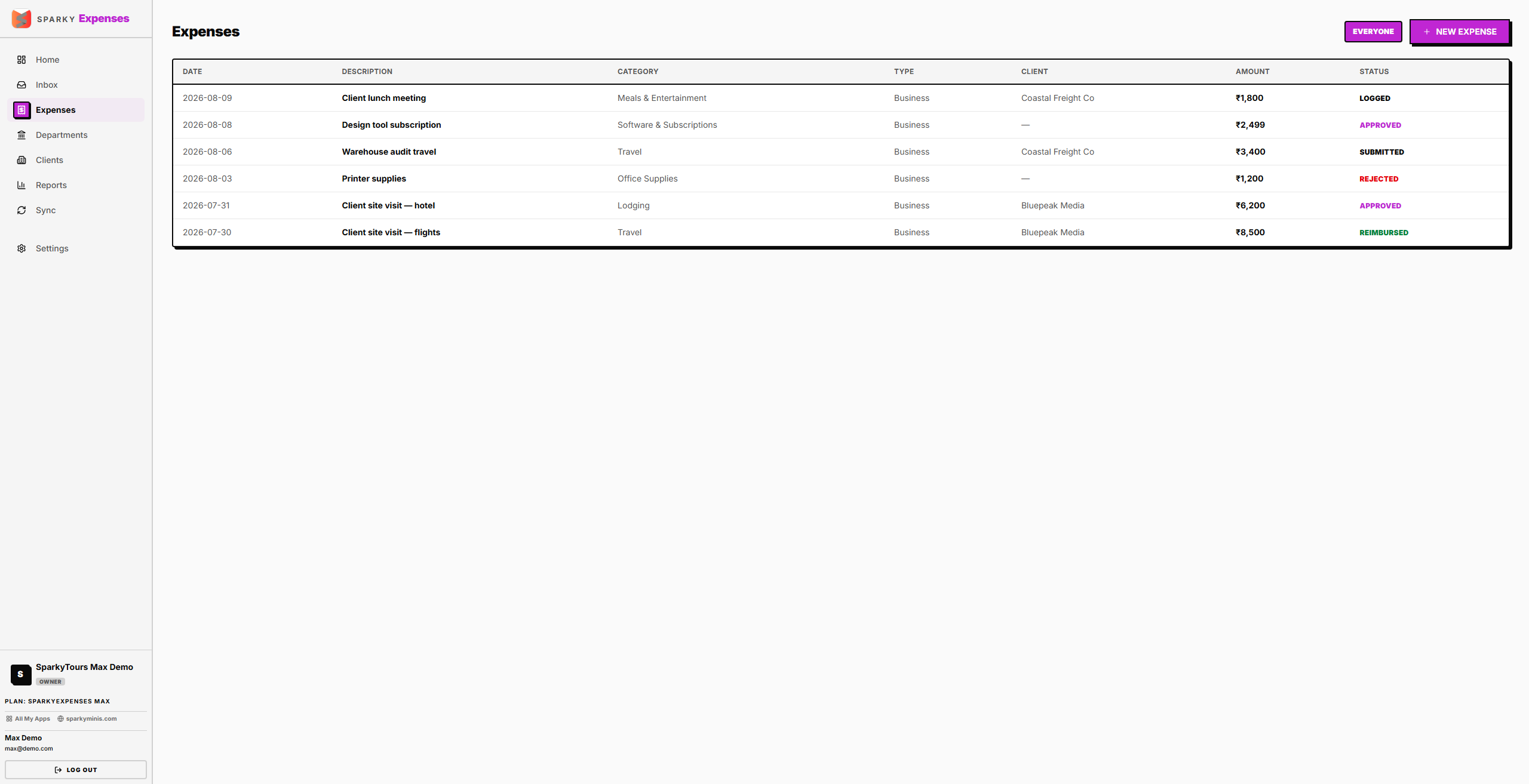
Open Expenses from the sidebar. If you can approve expenses, you'll see everyone's; otherwise just your own. Each row shows description, category, amount, status, date, and client (if billable to one).
How to log an expense
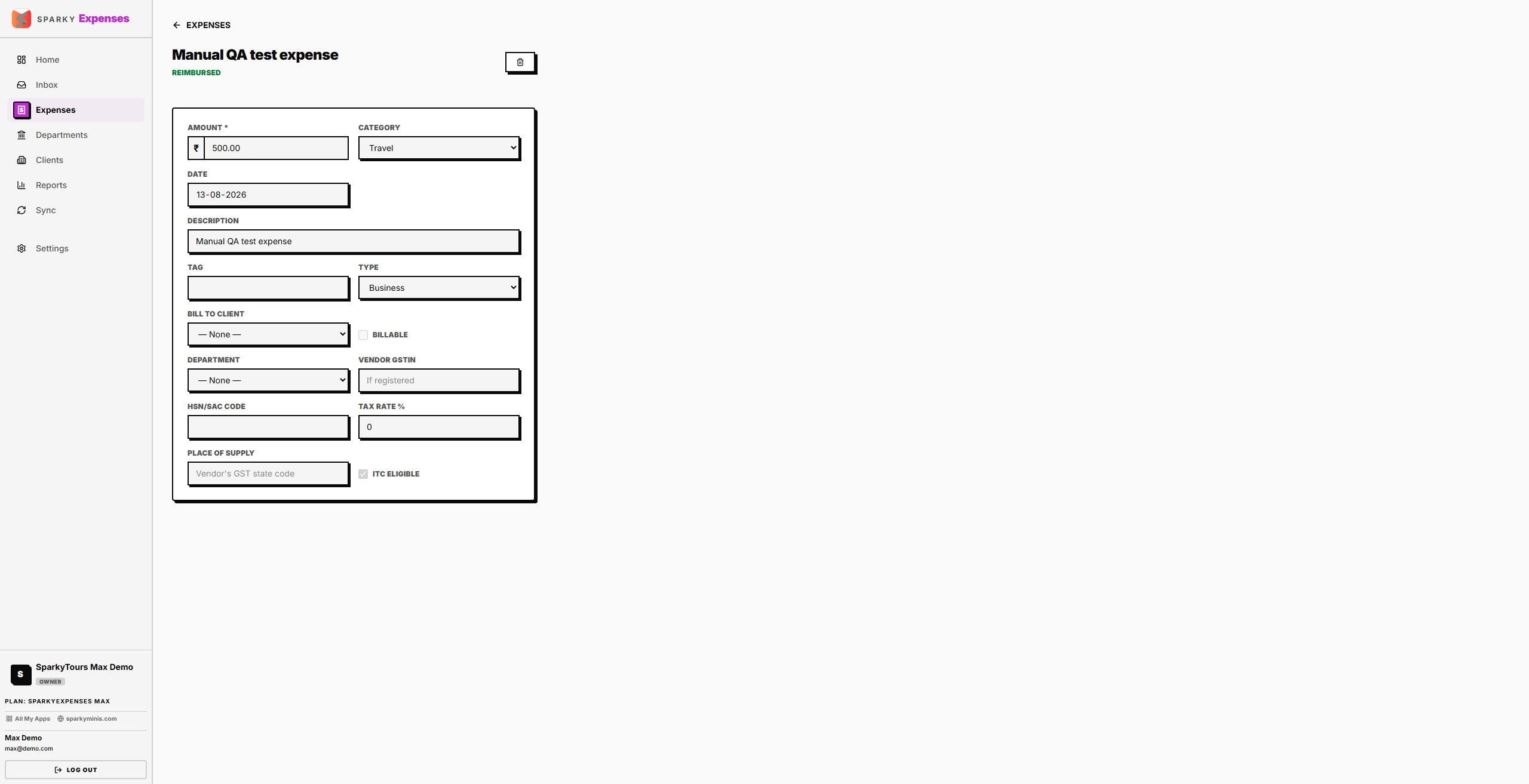
Click "New Expense": amount and currency (required), category, date, description, an optional tag, whether it's business or personal, and a receipt photo/file. Mark it billable and pick a client if it should be passed on to them later via SparkyInvoices. If your plan includes GST fields, you can also record the vendor's GSTIN, HSN/SAC code, tax rate, place of supply, and whether it's ITC-eligible. If your organization uses departments, assign it to one. If your plan includes approval workflows, a newly logged expense goes straight into the approval queue — there's no separate "submit" step to remember.
How to edit an expense
Open an expense you logged (or, if you can approve, anyone's) while it hasn't been approved, rejected, or reimbursed yet — once it has, it's locked. Change any of the same fields available when logging it.
How to approve, reject, or reimburse an expense
If you have approval permission, review expenses waiting on you: approve to move it toward reimbursement, or reject with an optional note. Once approved, mark it reimbursed when you've actually paid it out.
How to attach or view a receipt
Attach a receipt file when logging or editing an expense. View or download it any time from the expense's detail page.
How to delete an expense
Delete your own expense (or, if you can approve, anyone's), then confirm — this can't be undone, and also removes its attached receipt file.